
Store
The Store is Ghaymah’s catalog of pre-configured projects. Instead of configuring an image, ports, and environment by hand, pick a template and click Deploy Template — Ghaymah provisions the app (and any required services, like a database) for you.
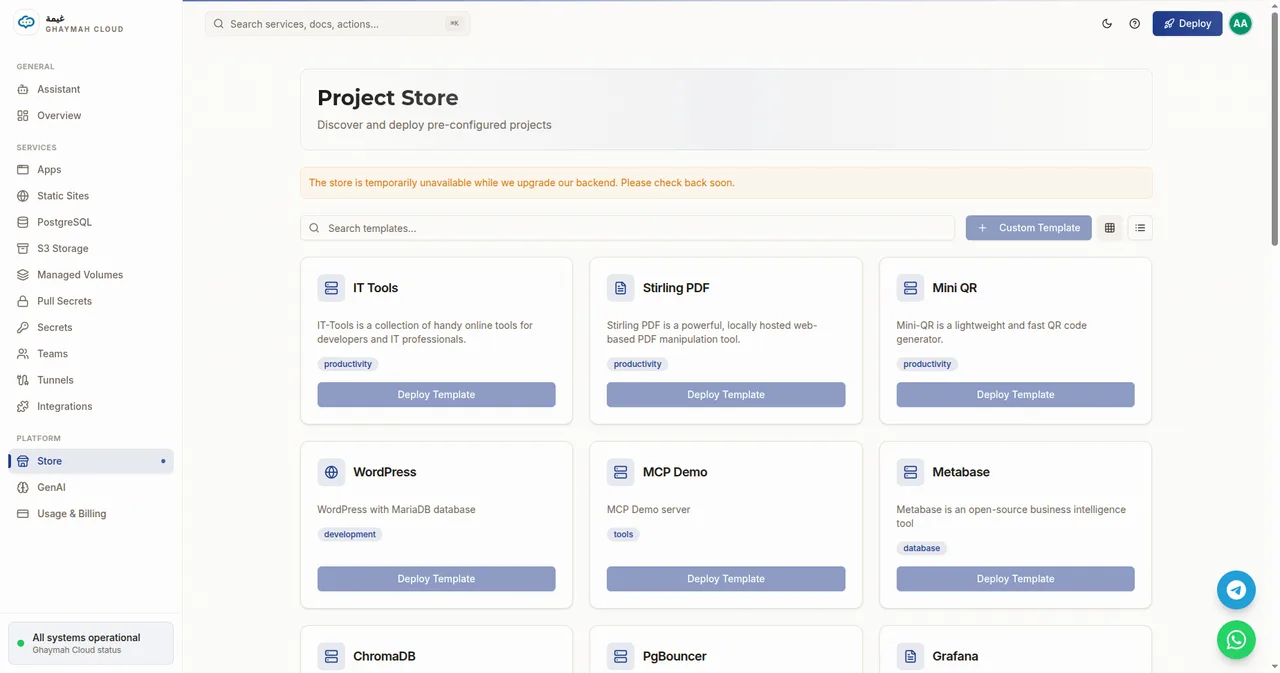
Categories
Section titled “Categories”Templates are grouped by what they’re for:
| Category | Examples |
|---|---|
| web | Basic Nginx, WordPress Light |
| development | WordPress (with MariaDB), Twenty CRM, Memos, DocuSeal, Code Server |
| database | PostgreSQL, MariaDB, Valkey, ChromaDB, PgBouncer, MeiliBridge, Hasura GraphQL, Metabase |
| monitoring | Grafana |
| automation | n8n, Uptime Kuma |
| productivity | IT Tools, Stirling PDF, Mini QR |
| tools | MCP Demo |
Some templates bundle dependencies for you — for example WordPress includes a MariaDB database, Twenty CRM includes PostgreSQL and Redis, and Hasura GraphQL pairs PostgreSQL with the Hasura GraphQL Engine.
Deploy a template
Section titled “Deploy a template”- Open Store.
- Find a template and click Deploy Template.
- Review the name and any required settings, then confirm.
Ghaymah creates the app (and any bundled services) with sensible defaults — you can then manage it like any other app from the dashboard or the REST API.
Custom Template
Section titled “Custom Template”The Custom Template button opens the standard Deploy App flow, so you can deploy your own image with full control over name, size, ports, env vars, and volumes.
Templates vs. hand-rolled deploys
Section titled “Templates vs. hand-rolled deploys”| Store template | Deploy App | |
|---|---|---|
| Setup | One click, pre-configured | You choose image, ports, env |
| Bundled services | Included where needed (databases, Redis) | You wire them up yourself |
| Best for | Known tools and quick starts | Your own code and custom images |
Next steps
Section titled “Next steps”- Apps — manage a template after it’s deployed
- Deploying your app — deploy your own image
- Managed PostgreSQL — databases the templates depend on